Firewall Roundup - Leak-tests Results
2007-12-13
I found a site that does Leak-tests and posts the results of popular firewalls. You can find the chart here. A summary follows:
As we've discussed previously, my favorite kind of software is the kind that's free. It was no surprise to me that my favorite firewall (though it may get replaced soon by the, also free, number one on the list) is near the top of this list at number 3. Below is the top 10. It should be noted that these are NOT ALL FREE, but the ones that are have notes to let you know that. To see the whole list, view their Leak-tests Results here. I'll post on my thoughts on firewall's in the near future, but first I just may end up trying my hand at another free one.
Freeware Review: Winamp
2007-12-09
So I've been a big fan of Winamp for year's, which is kind of surprising since its put out by AOL. Regardless, I've always been a fan and have used it for... erm, going on 8 year's now. I've tried other media players, or music players rather, since that's all I use it for, but I've always gone back to Winamp. Now, I'll be the first to admit that it's indexing capabilities could be better, but it does index the media library quite well (considering I have over 10,000 tracks for it to index).
Winamps newest installment, version 5.5 (it's 10th Anniversary Edition) comes with a great new skin which allows all the individual parts of the player to be clearly visible at once. There's a free version (which is of course what we're all about here) available here.
It typically wants to install the Winamp agent, which runs in the task tray and makes sure all of your files are indexed and by default, opened in Winamp. I don't particularly care for this feature (which is probably why it takes it a second to update the index of my files). I don't because I don't like programs running in the tray if I can help it. As a matter of fact, right now only 5 programs are running in my system tray (and I wish there weren't that many, but that includes Antivirus and Firewall). With that being said, I usually do not allow it to install this agent and I have it set to play, index, and be the default player for audio files only.
This is a great app that I suggest you download if you play any audio files on your computer at all. It automatically looks up the data from the CDDB on CD's you play with Winamp, and if you buy the paid version (which is only $20, and includes some amount of updates) then it will even rip CD's with the proper data as ID2 & ID3 tags. Again, download it. There are other media players that are nice, but I dare say you'll be hard pressed to find one as efficient as Winamp.
How To: Have CCleaner Run Automatically
2007-12-03
If you don't know what CCleaner is, or you missed the Freeware Review of CCleaner please first read this post.
CCleaner supports command line operation. If you don't know what that means, don't worry about it. What it means for you is that we can set it to run automatically at a specified time.
It should also be noted, particularly if you are one who regularly turns your computer on and off, that CCleaner can be run at system startup by clicking Options > Settings > and checking the box beside "Run CCleaner when the computer starts." If you, however, leave your computer on most of the time, then running at startup is not going to be enough to thoroughly clean your computer and keep it optimized as it should be.
Much like an antivirus application, CCleaner can be set to run at a specified interval set by you. To specify this interval follow these directions (I used Windows XP for these instructions, so if you also have Windows XP then you should be able to follow these directions directly):
- Click Start > Control Panel > and double click on Scheduled Tasks.
- Double click Add Scheduled Task.
- The Scheduled Task Wizard will start, click Next to begin the creation process.
- In the next window, scroll down until you find the CCleaner application. Click on it once and the click next.

- Select how often you'd like CCleaner to automatically run. I have mine run daily, but once a week should be sufficient.
- Select the time of day you would like it to run. Now, while CCleaner is very fast and you shouldn't notice it running, I recommend running it at a time while you are not at the computer. Mine runs at 3:00 AM.
- Enter the password for the account in which you would like it to run under. If you do not know the password, just click next, you will be able to allow it to run only when you're logged in in a minute.
- Check the box next to "Open advanced properties for this task when I click Finish." Then click Finish. [Note: If you did not enter a password in step 7, you may get an error message. Just ignore it, we'll solve that problem momentarily]
- At the properties window of the task we just created do the following:
- In the top-most text box you will see the path to the CCleaner program. Do not change the path, but out beside of it type "/AUTO" (without quotes of course).
- Check the checkmark beside "Only run if logged on."
- Click Ok. Also click Ok to any other messages you may receive.


Freeware Review: CCleaner
Again, we're going with software that gives us the best bang for our buck. And being this freeware app costs nothing, it certainly gives way more than it receives (relative to its cost that is).
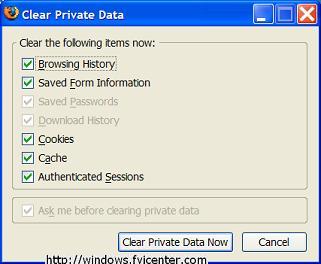
Now, I've never purchased software like this, I always just wrote batch files to delete temporary files and used browsers like Mozilla Firefox that has settings that will allow the automatic deletion of Private Data (see picture at right).
Moving on... CCleaner according to their website...is a freeware system optimization and privacy tool. It removes unused files from your system - allowing Windows to run faster and freeing up valuable hard disk space. It also cleans traces of your online activities such as your Internet history. But the best part is that it's fast (normally taking less than a second to run) and contains NO Spyware or Adware! :)
Sounds pretty perfect, huh?! Following is a list (from the CCleaner website) of what CCleaner will clean for you:
Internet Explorer
Temporary files, URL history, cookies, Autocomplete form history, index.dat.
Firefox
Temporary files, URL history, cookies, download history.
Opera
Temporary files, URL history, cookies.
Windows
Recycle Bin, Recent Documents, Temporary files and Log files.
Registry cleaner
Advanced features to remove unused and old entries, including File Extensions, ActiveX Controls, ClassIDs, ProgIDs, Uninstallers, Shared DLLs, Fonts, Help Files, Application Paths, Icons, Invalid Shortcuts and more... also comes with a comprehensive backup feature.
Third-party applications
Removes temp files and recent file lists (MRUs) from many apps including Media Player, eMule, Kazaa, Google Toolbar, Netscape, MS Office, Nero, Adobe Acrobat, WinRAR, WinAce, WinZip and many more...
100% Spyware FREE
This software does NOT contain any Spyware, Adware or Viruses.


I've never had CCleaner delete anything that my computer yelled at me about at any point later, so with that being said... You may download CCleaner by visiting their website at www.ccleaner.com. I would highly advise downloading it and using it. It's worth it!

Freeware Review: Defragmenting Applications
2007-11-28
So this will be the first of a series of software reviews. I'm going to start with freeware because really, what's better than free? Besides, I use almost nothing but freeware so I consider myself somewhat of an authority on the subject. Hope you'll agree...
I recently reformatted my computer and reinstalled a clean Windows XP. Once I installed all of the essentials I realized I hadn't installed a defragmenting program, and that my friends is unacceptable. Why? Read on.

First though... what is fragmentation?
Well, sometimes when you install a program or create a data file, the file ends up chopped up into chunks and stored in multiple locations on the disk. This is called fragmentation.
What makes this happen?
When you first install your operating system and programs on your hard disk, they are written to the disk, for the most part, in one contiguous block without any gaps. The exceptions are certain system files that must be stored in specific locations. Over time, as you create and then delete documents or uninstall programs, once-filled locations are left empty and you end up with files dotted all over the disk.
Now, when Windows is writing a file to the disk, it looks for a suitable piece of free space in which to store it. What happens, then, when you copy a 40MB database or audio file to the disk and the biggest slice of free space is only 30MB? Or say you modify an existing file, appending a whole bunch of data so the file now takes up more space on the disk. To accommodate the files, Windows writes the first part of the file in one section of the disk and then scouts around for other places to store the rest of the file. The end result is that a single file may be stored in several chunks scattered about the disk.
And, according to Wikipedia, defragmentation is a process that reduces the amount of fragmentation in file systems. It does this by physically reorganizing the contents of the disk to store the pieces of each file close together and contiguously. It also attempts to create larger regions of free space using compaction to impede the return of fragmentation. Some defragmenters also try to keep smaller files within a single directory together, as they are often accessed in sequence. According to a survey, 42% of PC users fail to defrag their system regularly, adversely affecting system performance.So hopefully after this post you'll not be part of that 42% because you'll have freeware ways to defrag your system.
I recently ran across an article called The Great Defrag Shootout which helped open my eyes to some free and payware defragmenting applications.
I'm going to jump right to the winner of that set of articles, or at least the freeware winner.
The winner was JkDefrag, or rather, it's GUI version. But it wasn't just JKDefrag that Mr. Edwards found did the trick. It was a suite of free defragmenting utilities that include JKDefrag 3.26, NTREGOPT, PageDefrag, JKDefrag GUI, and Contig.
I'll have to say that after year's of first using Windows built in defragmenter, and then converting to Diskeeper Professional edition, this suite of freeware applications is not only the best bang for your buck (especially since you spend nothing) but it's the best combination of utilities to help keep your computer running at optimal condition.
If you'd like to read more about the contenders of The Great Defrag Shootout and see how your defragmenter of choice ended up have a gander at Donn Edwards Insights and Rants blog.
As per my recommendation... I've been a faithful pay-for-defragmenter (;P) user for year's but I have jumped ship to the one-way boat to freeware land, and this suite of applications together, I've found, have kept my computer at tip-top shape and defragged computers who hadn't been defragged in over a year. I recommend downloading and trying this suite out. The best thing about JKDefrag is that you can set it to run while your screensaver is running, that way whenever your computer is idle it will defrag your computer.
You can download all of the applications in one easy to use setup program here. Be aware though that there is a new version of JKDefrag. Version 3.28, which Mr. Edwards has addressed here (but I haven't upgraded yet so you're on your own there).
Remember, you should definitely defrag your computer, why you ask? Read here.


